
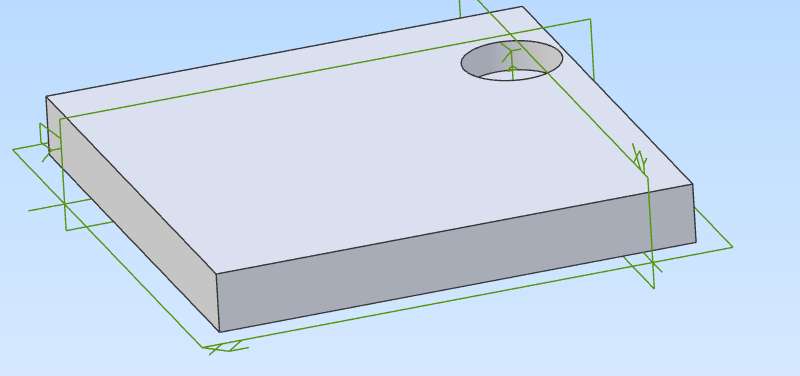
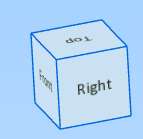
Alibre Model / View-Cube Orientation
Alibre Model / View-Cube Orientation
- This topic has 46 replies, 12 voices, and was last updated 15 December 2025 at 20:30 by
 Nigel Graham 2.
 Nigel Graham 2.
 John Hinkley
 Nigel Graham 2
 JasonB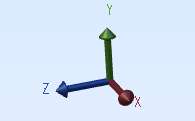
 blowlamp
 Michael Gilligan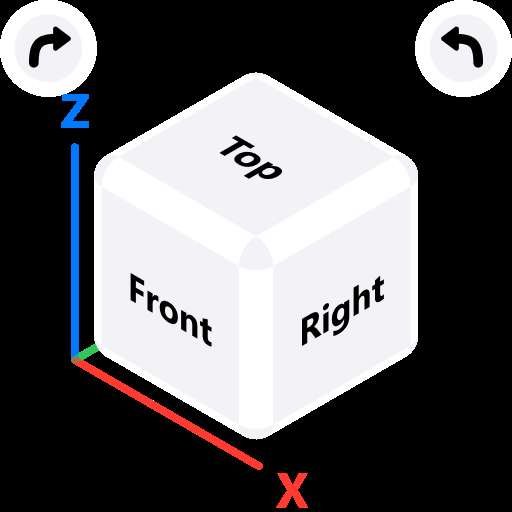
 David Jupp
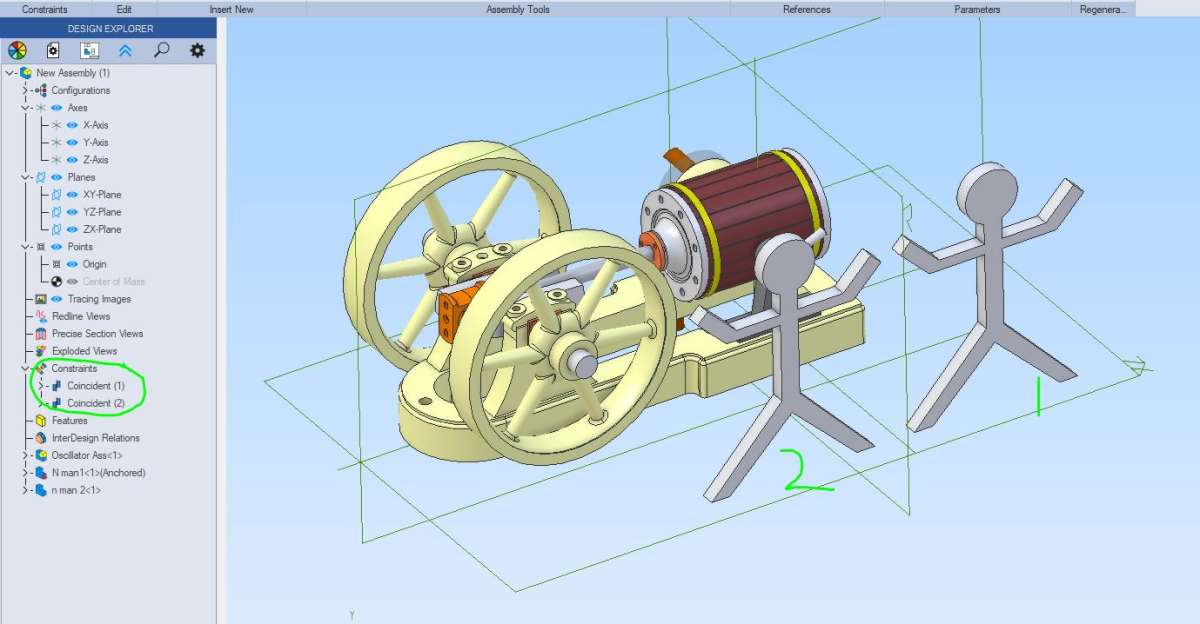
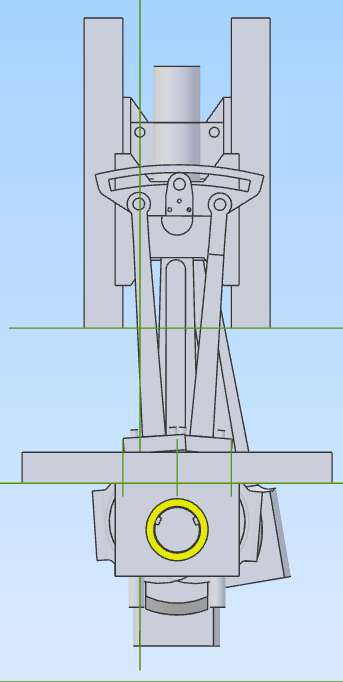
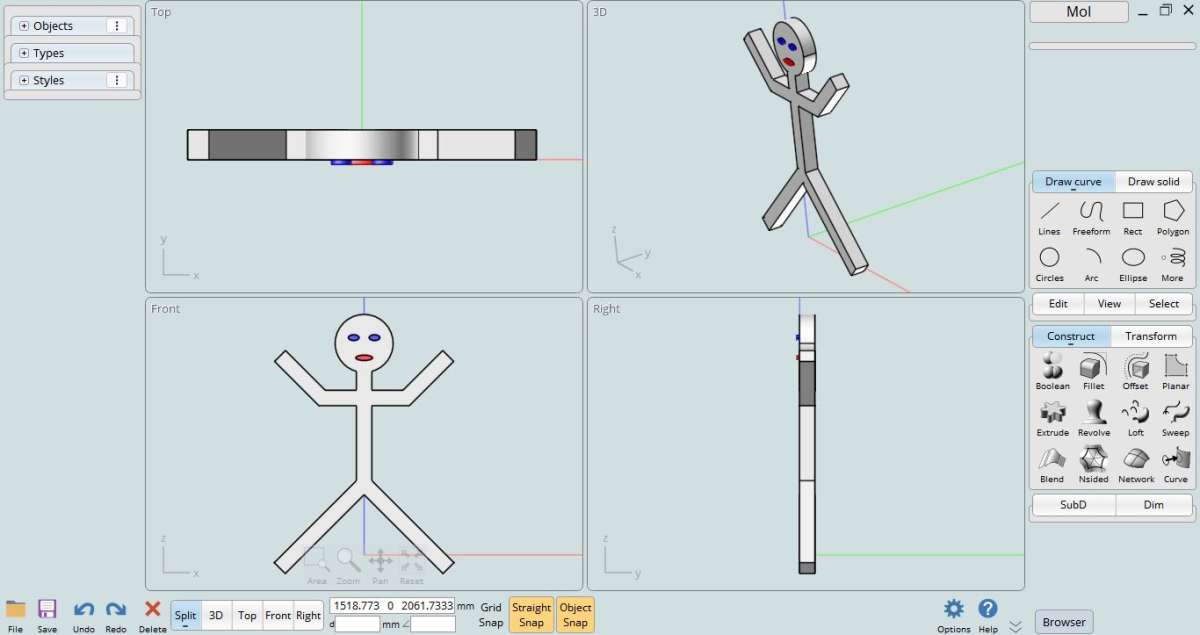
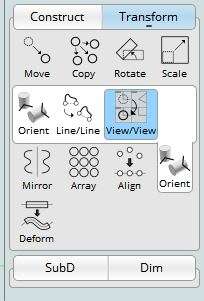
- Please log in to reply to this topic. Registering is free and easy using the links on the menu at the top of this page.
Latest Replies
-
- Topic
- Voices
- Last Post
-
-
Making a Lathe Bench for a Myford ML10
Started by:
starjump
in: Beginners questions
- 6
-
17 October 2026 at 08:05
Brian Baker 2
-
injector operation
Started by:
Garry Coles
in: General Questions
- 6
-
17 October 2026 at 06:31
Speedy Builder5
-
Weight of Myford Super 7 / ML7R
Started by:
Andrew Tinsley
in: General Questions
- 5
-
16 October 2026 at 22:15
peak4
-
Steam Powered Lawn Mower!.
1
2
Started by:
Richard S2
in: Related Hobbies including Vehicle Restoration
- 13
-
16 October 2026 at 22:09
Richard S2
-
CAST IRON JOINING
Started by:
ian Holdsworth
in: Beginners questions
- 11
-
16 October 2026 at 19:18
JasonB
-
Tom Senior small vertical head axial play
Started by:
chris1984
in: Manual machine tools
- 4
-
16 October 2026 at 19:07
not done it yet
-
Scroll Saw Blades for Steel
1
2
Started by:
James A
in: Workshop Tools and Tooling
- 15
-
16 October 2026 at 17:19
Emanuel Hernandez
-
Angled d-bit / machinist reamer?
1
2
Started by:
Fulmen
in: Workshop Tools and Tooling
- 12
-
16 October 2026 at 16:12
Fulmen
-
Myford ml7r
Started by:
lug lord
in: Introduce Yourself – New members start here!
- 2
-
16 October 2026 at 12:04
Bazyle
-
Coventry die head
Started by:
lug lord
in: Workshop Techniques
- 6
-
16 October 2026 at 10:32
bernard towers
-
Does anyone have any info about these vices
1
2
Started by:
bjcolyer
in: Introduce Yourself – New members start here!
- 12
-
16 October 2026 at 10:20
bjcolyer
-
Picomite Version 7 – better than Arduino?
Started by:
IanT
in: Electronics in the Workshop
- 8
-
16 October 2026 at 09:29
IanT
-
Super Simplex Build
Started by:
Peter Hoerlein
in: Work In Progress and completed items
- 7
-
15 October 2026 at 23:29
Peter Hoerlein
-
ML7 change gear caluclator
Started by:
drnewcomb
in: Manual machine tools
- 3
-
15 October 2026 at 21:11
peak4
-
Lathe turning tool nomenclature
Started by:
JA
in: Workshop Tools and Tooling
- 9
-
15 October 2026 at 19:48
old mart
-
Model Engineering Website
Started by:
Geoff Rogers
in: General Questions
- 5
-
15 October 2026 at 16:14
JA
-
Parkside Electronics
Started by:
Clive Steer
in: General Questions
- 8
-
15 October 2026 at 13:13
shayodon
-
Model Engineer Magazine Collection
Started by:
mfengine1
in: Books
- 11
-
15 October 2026 at 12:13
bcaddle62
-
John Haining 2″ Ruston
Started by:
Pixel_Porpoise
in: Help and Assistance! (Offered or Wanted)
- 2
-
15 October 2026 at 11:32
Pixel_Porpoise
-
Searching for roller chain with pitch 2.5 mm
Started by:
Werner Habbel
in: Hints And Tips for model engineers
- 4
-
15 October 2026 at 10:16
Werner Habbel
-
Model Engineering Website
Started by:
Neil A
in: The Tea Room
- 1
-
15 October 2026 at 10:03
Neil A
-
Lathe arriving – source some practice materials
1
2
Started by:
starjump
in: Beginners questions
- 17
-
15 October 2026 at 09:48
starjump
-
Greenbat 3 ton battery loco
Started by:
Pippin
in: Work In Progress and completed items
- 2
-
15 October 2026 at 08:52
Pippin
-
Printed circuit boards
Started by:
duncan webster 1
in: Electronics in the Workshop
- 7
-
14 October 2026 at 21:33
duncan webster 1
-
What Are the Most Practical Ways to Make Manufacturing More Sustainable?
Started by:
andrew998
in: Workshop Techniques
- 6
-
14 October 2026 at 16:41
ega
-
Making a Lathe Bench for a Myford ML10
 starjump
  Brian Baker 2
 Garry Coles
  Speedy Builder5
 Andrew Tinsley
  peak4
peak4 Richard S2
  ian Holdsworth
  JasonB
 chris1984
  not done it yet
 James A
  Emanuel Hernandez
 Fulmen
  lug lord
  Bazyle
 bernard towers
 bjcolyer
  IanT
IanT  Peter Hoerlein
  drnewcomb
  JA
JA  old mart
 Geoff Rogers
  Clive Steer
  shayodon
 mfengine1
  bcaddle62
 Pixel_Porpoise
  Werner Habbel
  Neil A
  Pippin
  duncan webster 1
  andrew998
  ega
ega